Tuesday, March 31, 2009

Tech Tip: Assembly Starter File with Virtual Parts

Category: Assembly


Creating an assembly starter file including virtual parts can makes for a quick and easy way to create derivative designs. With virtual parts, only a single assembly file is needed for the starter file which will create all the individual part files when using the references option of “save as”.

Procedure:

Create an assembly file with only Virtual parts. In context features are optional but using them with assembly sketches can add to the functionality. Save this file with a generic name, for this example Book Shelf will be used.
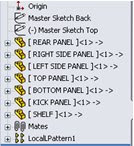
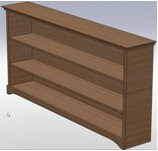

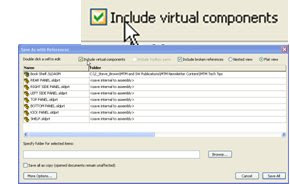
Open the Basic assembly and select File/Save As. In the Save As dialog box, select References and check the Include Virtual Components box.



Select all the files by selecting the column header Name. Under More Options, add a suffix such as _Customer A. Optionally a destination folder for the new parts can be specified. Select Apply to see a preview of the new filenames and paths listed in green. Select Save All to complete the process.
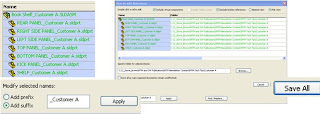


The new assembly and individual part files are created with the new names. The original starter file is left unchanged.
Tech Tip: Equations and Custom Properties

Category: Parts

Custom properties can be used in equations and equation variables can be accessed in custom properties.

Procedure:

Example: We know the cost per pound of the material we’re using. We would like a custom property for the total cost of the part which can be determined by multiplying the cost per pound, times the weight of the part. First, we should create the custom properties “cost per pound” and “weight”.

We can calculate the total cost by creating an equation and accessing the custom properties from the drop-down at the bottom of the equation dialog box.


Then we can create a new custom property “cost” and set it equal to the equation variable.


Monday, March 30, 2009

Service Pack 3.0

Weldments
When two structural members intersect with a butt corner type, you can use options in the Structural Member and Trim/Extend PropertyManagers to make a:

  • Simple Cut: Makes the structural members flush with the planar contact faces (helpful for manufacturing)
  • Coped Cut: Trims the structural member to the contact body

Focal Length Support in PhotoView 360
A new control, Set Camera Focal Length in the Settings dialog, lets you control the focal length of the camera, resulting in different levels of perspective.

Print Selection and Scaling Options
The missing print selection workflow from SolidWorks 2008 has been restored. To print drawing selections at the desired scale:

  1. Click File, Print.
  2. In the Print dialog box, under Print range, select: Current screen image, Selection
  3. Click OK.
  4. In the Print Selection dialog box, set the print scale and click Apply Scale.
  5. Move the selection frame that appears in the graphics area as desired.
  6. Click OK to print.


Pro/ENGINEER Wildfire 4.0 Support
You can open Pro/ENGINEER® Wildfire 4.0 files in SolidWorks.

New SolidWorks and SolidWorks Simulation Tutorials
SolidWorks

  • DimXpert
  • Electrical Routing
  • TolAnalyst

SolidWorks API

  • C#
  • VB.NET


SolidWorks Simulation

  • Design Check for Assembly with Mixed Mesh
  • Design Check for Connectors


Click Help, SolidWorks Tutorials to access the SolidWorks and SolidWorks API tutorials. Click Simulation, Help, Simulation Online Tutorial to access the SolidWorks Simulation tutorials. The new tutorials are not localized. The English version is accessible from all localized versions of SolidWorks. Updated tutorials and documentation are available in complete installations of SolidWorks 2009 Service Pack 3.0.


Renaming Configurations
You can rename a configuration in a part or subassembly even when another open document is referencing the configuration. Previously, you had to close the parent document before renaming the configuration. This functionality was introduced in SP 1.0.

Wednesday, March 25, 2009

Making Analysis Simple Seminar


ModernTech Mechanical will launch a seminar series, “Making Analysis Simple” in April 2009. Attendees will learn how SolidWorks Simulation products are used for analyzing real world operating conditions, reducing the time and costs associated with building and testing prototypes. All attendees will receive the white paper, “Managing Design Simulation,” compliments of ModernTech Mechanical. Those interested in attending a “Making Analysis Simple” seminar can register at http://www.moderntechmech.com/seminars/simple_analysis.html

Monday, September 29, 2008

2009 Upgrade Tips

It's that time again!!!

SolidWorks 2009 has officially been released for download and the questions are starting to poor into ModernTech Mechanical support asking for "best practices", "recommend steps" and overall "how to" for upgrading to 2009. I figured this was a perfect time to provide some basic recommendations for performing a upgrade to the newest version.

Network users:
  • Acquire the new 2009 license file: SolidWorks is releasing "any" files for 2009 SNL usage that are valid until 10/31/08. These files are for temporary usage until SolidWorks gets all the license files updated.
  • Uninstall 2008 SNL manager & install 2009 SNL Manager: First things first. Uninstall the old license manager and then reinstall the new 2009 license manager. The 2009 SNL will work for 2007-2009 versions of SolidWorks. Be sure to install DIRECTLY on the hosting machine as the Dongle driver does not install via Remote Desktop or Terminal Services.
General Procedures:
  • Verify your systems graphics driver: It is important to always be running a certified card/system with the certified driver for SolidWorks. You can get a list of available certified cards/systems with their associated drivers at the following link: http://www.solidworks.com/sw/videocardtesting.html
  • Backup File Sets: Be sure to backup the desired file sets before upgrading. These include (but are not limited to) Toolbox, Solidworks Files, PDM Vault and Template files.
  • Backup User Settings: If upgrading from 2008, backup your user interface settings. You can do this by launching the Copy Settings Wizard located in SolidWorks Tools under the Start Menu or by Exporting the follow registry key from the registry: HKEY_Current_User\Software\Solidworks. (to restore settings after 2009 install open the above Key and rename the SolidWorks 2008 Key to SolidWorks 2009; contact ModernTech support for more information)
  • Perform Clean Uninstall: We recommend that you perform a clean uninstall before going to any new major version. Contact ModernTech Support for more infromation (solidworks.support@moderntechmech.com)
  • Turn Off Anti-Virus: Make sure to turn off ALL Anti-Virus & Anti-Spyware during the install of SolidWorks.
Install Options:
  • Determine Install Method: ModernTech recommends an Admin Image installation for 3 seats of SolidWorks or more. DVD installation for 1 or 2 seats.
  • Serial Numbers: During the installation be sure to select all products in the installation manager that you wish to install. PDMWorks, SolidWorks Simulation, SolidWorks Motion and Solidworks Flow have their own serial numbers
  • Upgrade PDM System: The last step in any upgrade is the PDM system. Upgrade the PDM server to the latest version and determine your file update method. This can be either "On Demand" at check out or "Bulk" via Task Scheduler.
ModernTech Mechanical offers a NEW service called the "Quick Start" for SolidWorks that will assist new and existing customers in the upgrade (initial install) process. This is a one day service where an Application Engineer assists in all of the above information (plus more!). You can find out more information at the following link: http://www.moderntechmech.com/services/solidworks_quickstart.html

Monday, September 15, 2008

BOM's in Assembly Documents

A long sought after functionality is being added to Solidworks with the release of 2009. For some time the ModernTech Technical team has been asked about creating BOM's inside of parts and assemblies without the need for a drawing.

Solidworks has stepped up its efforts to help the world go paperless, a move long overlooked by many companies in my opinion, by adding the ability to create assembly and multibody part BOM's without a drawing.

BOM's are inserted by selecting "Insert -> Tables -> Bill of Materials".


Once the BOM is inserted you have the ability to export it in several useful formats (shown below).

This new functionality looks to provide a useful alternative to creating drawings; allow for easy collaboration with the use of eDrawings between customers/clients.


Thursday, September 11, 2008

ModernTech Blog Now Live!

With the release of Solidworks 2009 just around the corner, ModernTech Mechanical has decided to join the world of blogging! We hope to develop and provide an environment for our current and future customer base to come for technical tips, tricks and all around knowledge of Solidworks and Engineering related solutions.

In the coming weeks look for “What’s New” information, tips and tricks for upgrading to 2009 along with many other useful posts.

Please don’t hesitate to contact me with questions/comments regarding our blog at: chris.sonon@moderntech.com