Wednesday, September 30, 2009

TECH TIP

TOPIC: Inspection Documents using eDrawings

SolidWorks enables the user to mark specific dimensions on drawings as inspection dimensions by placing an oval around the specific dimension value. eDrawings Professional offers a means to create an electronic version of this document for inspection purposes. This provides a means to document the measured values of these critical dimensions, maintain any notes related to the measurement method and securely store this information in an electronic format separate from the original SolidWorks source drawing.

Procedure:
From within eDrawings the native SolidWorks drawing file is opened and saved as an eDrawing document. Using the mark up functionality and associated comments the inspection document can be created, edited, and reviewed by others who can also reply to existing comments or add their own.

1. In eDrawings open the native SolidWorks drawing, detached drawings are supported as well, and save the file as an eDrawing file type. (.edrw)

2. Select the mark up icon from the left side of the screen to open the markup dialog panel. Each inspection can be listed here with comments that will appear in the bottom half of the panel. Also the various shapes for the inspection data can be selected from this panel as well a general notes.


3. Placing a rectangle in the graphics area and using text to record the measured value will generate a comment in the Markup Panel. A descriptive name can be applied and any text such as the measuring device used for this inspection can be added. The current “User Name” is applied automatically.


4. Selecting the comment will enable the Reply function. The current user can respond to individual inspection comments.


Notes:

1. The filename of the inspection document can be identical to the original native SolidWorks document.
2. PDM Enterprise can automate this creation process and also allow a specific workflow for the inspection document.
3. eDrawings also has “stamps” such as APPROVED which can be permanently applied to the file.
4. Markups can also be saved in external files separate from the .edrw file, where they can be imported at any time.

Tuesday, September 15, 2009

TECH TIP

TOPIC: Schedule a Defrag on multiple drives

One of the most over looked and easiest things to fix for system performance is defragmenting your disks. The problem is making the time to run it and if you have several disks then you have to wait for one to finish before starting the next. There are fee based software’s out there that can do this, but why spend the money. I found this tip on the Microsoft website and it works great.

Procedure:
Use the Window’s task scheduler with some minor task editing to add a drive letter. Not as obvious as you might think…


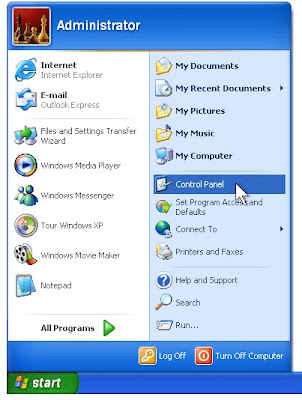
1. Click Start, and then click Control Panel


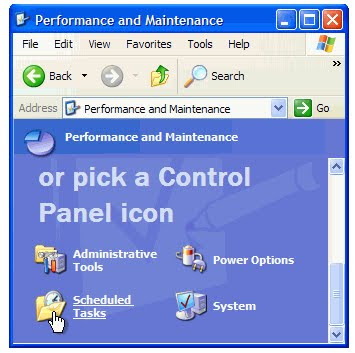
2. Click Performance and Maintenance

3. Under or pick a Control Panel icon, click Sheduled Tasks.


4. In the Scheduled Tasks window, double-click Add Scheduled Task.

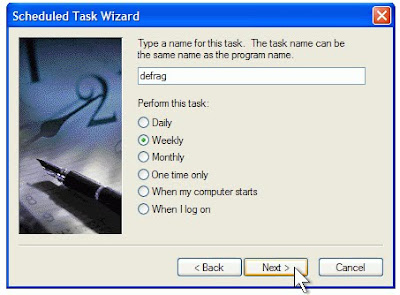
5. In the Scheduled Task Wizard, click Next.

6. Click Browse

7. In the File name box, type %systemroot%\system32\defrag.exe and then click Open.

8. Under Perform this task, click Weekly. Then, click Next.

9. Set the time and day of the week you would like to defragment your hard drive. For best results, choose a time when your computer will be on but you will be away from it. Click Next.

10. Type your password in both the Enter the password and Confirm password boxes. Then, click Next.

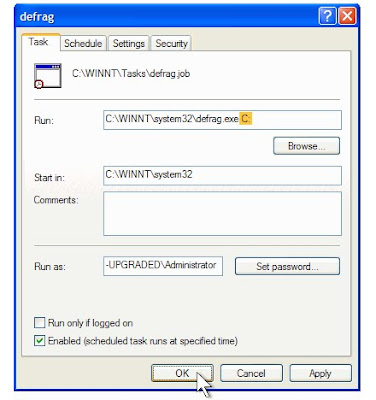
11. Select the Open advanced properties for this task when I click Finish check box, and then click Finish.

12. In the Run box, add C: to the existing command. Make sure you include a space before the “C:”. Then, click OK.


13. In the Set Account Information dialog box, type your password in both the Password and Confirm password boxes. Then, click OK.

Windows XP will defragment your hard drive at the time you have scheduled. During defragmentation, a black window will open. If you happen to be working at your computer when the window opens, you can ignore it. The window will automatically disappear when defragmentation is complete. You can use other programs during defragmentation, but you may prefer to schedule defragmentation at a time when you won’t be using your computer.
Defragmentation works best when you have plenty of free space on your hard drive.

Notes:

Link to procedure from Microsoft (http://www.microsoft.com/windowsxp/using/setup/tips/defrag.mspx)


TECH TIP

TOPIC:
3D Drawing View Mode


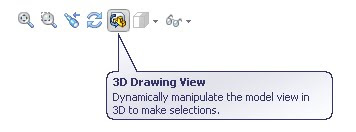
3D drawing view mode will dynamically manipulate the model in a drawing view. It’s typically used to select items that are behind other entities.

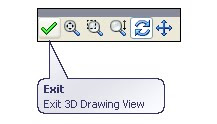
Procedure: The command can be accessed from the heads-up view toolbar.


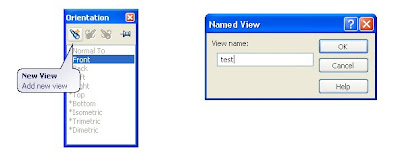
After selecting a view you can pan, zoom, or rotate. When you Exit, the view returns to its original orientation.Notes: It’s possible to save the orientation to be used in this or another view. The prerequisite for this functionality is that the view must be a named view.

To save the orientation press Spacebar before exiting the command and create a new view.

The new view will then be available to use in this or any other named view.


TECH TIP

TOPIC: Locking your dimension style with the right mouse button.

Sometimes one may want a dimension placed in an odd position other than horizontal or vertical, but maintain either the horizontal or vertical dimension orientation. This can be achieved easily if you watch your mouse feedback when placing the dimension.

Procedure:

During Sketching, the user can lock a dimension orientation when needed. This can be achieved by looking for the right click option symbol when placing a dimension.

1.Select the Smart Dimension Icon, and then select the items to be dimensioned then move to the desired location.

2. Look for the right click option symbol (shown below). When the dimension is in the desired orientation, hit the Right mouse button and lock this orientation.

a. Linear Dimensions:
b. Angular Dimensions:


3. The dimension can now be moved to any location, but will maintain the current orientation.

Notes: With many commands the user should watch the feedback options available.

1. When extruding a feature look for the green check mark option with the right mouse click. It’s faster than hitting the return key or selecting it from the confirmation corner.
2. If you go to tool, Sketch Tools, Modify
TECH TIP

TOPIC: Indent as In Context cut

Using in-context cuts to provide clearance for interfering parts in an assembly is a useful technique. However there are times when finding a sketch plane and creating the sketch can be problematic. In these cases consider using the Indent command with its “cut” option enabled.

Procedure:
Open an assembly that has parts interfering. In this case we have a square structural member protruding through a sheet metal safety guard.

1. Edit the part that will be modified with the cut. In this case the Sheet Metal Guard.


2. Select the Indent command and select the Target Body (sheet metal guard) and the tool body (square tube). Optionally a clearance or “gap” can be specified. In this case a .125 inch space is created around the square tube.


3. Because the tool body was a tube this command produced a left over remnant in the guard. Using delete body removes this unwanted material. If the tool body (square tube) had been solid this would not have happened.


Thursday, August 27, 2009


Join ModernTech Mechanical for a no-cost "What's New in SolidWorks 2010" event in your area! Enjoy a complimentary breakfast while we cover topics including an overview of SolidWorks 2010 updates and capability enhancements for the following software solutions:
  • SolidWorks Design
  • SolidWorks Simulation
  • Enterprise PDM
  • 3DVIA Composer
  • SolidWorks Sustainability

To register, click HERE. Once you register, you will receive further details on event location, including directions!

All events run from 8a.m. - 12:15p.m.

Oct. 5
Nashville, TN
Birmingham, AL

Oct. 6
Tampa, FL
Montgomery, AL

Oct. 7
Orlando, FL- Featuring Rick Chin of SolidWorks
Memphis, TN
Mobile, AL -
Z Corp 3D Printing/Scanning Showcase 1:30pm - 4:30pm

Oct. 8
Jacksonville, FL- Featuring Rick Chin of SolidWorks
Fort Walton, FL -
Z Corp 3D Printing/Scanning Showcase 1:30pm - 4:30pm

Oct. 13
Fort Lauderdale, FL
Charlotte, NC
Knoxville, TN

Oct. 14
Atlanta, GA
Greenville, SC
Miami, FL

Oct. 15
Lawerenceville, GA
Chattanooga, TN
Raleigh/Cary, NC

Oct. 16
Columbia, SC

Oct. 20
Peachtree City, GA
Huntsville, AL

Oct. 21

Ashville, NC

Oct. 22
Charleston, SC

Oct. 27
Winston-Salem, NC

Oct 28
Panama City, FL

Wednesday, August 12, 2009


SolidCAM 2009 Boot Camp Seminar

ModernTech Mechanical invites you to attend SolidCAMP 2009, a FREE seminar on the release of the Newest and Best Version EVER - SolidCAM 2009!

Learn survival techniques with SolidCAM Professor Sidney Eisner while enjoying the world's largest private collection of vintage and modern motorcycles and Lotus racecars - the Barber Vintage Motorsports Museum
  • SolidCAM - a SolidWorks-certified Gold Product with seamless, single-window integration and full associativity to SolidWorks parts, assemblies and configuration manager. \
  • A complete range of major manufacturing applications ranging from 2.5D Milling to simultaneous 5-axis Milling, Turning, MillTurn and WireEDM.
  • Over 25 years of development. Simply the best, easiest to use and easiest to learn CAM Software for SolidWorks users.
    Seminar Agenda

Seminar Agenda

  • Find out what’s new in SolidCAM 2009, the most powerful version ever – with over 100 improvements!
  • Get through the obstacle course with Tips and Tricks from SolidCAM Professor Sidney Eisner.
  • Sneak preview on the upcoming version SolidCAM 2010.
  • \Crack the code of SolidCAM’s I-Machining, HSM and HSS Modules.

Join us for this free seminar to get the jump on your competitors and be eligible to win free SolidCAM 2.5D Mill Professional with 3 years Maintenance and unlimited SolidCAM Professor access, $7100 value


WIN Door Prizes such as High-Performance Cutting Tools from GW Schultz and Gift Certificates from the Bass Pro Shop next door to the museum.


MEET personally with local SolidCAM reseller CAMcad Technologies personnel and learn what they offer in terms of support, training, and consulting services.